Find your scanner.
Put your phone and scanner on the same Wi-Fi network. Open AirScanner, allow Local Network access, and pick your scanner from the list.
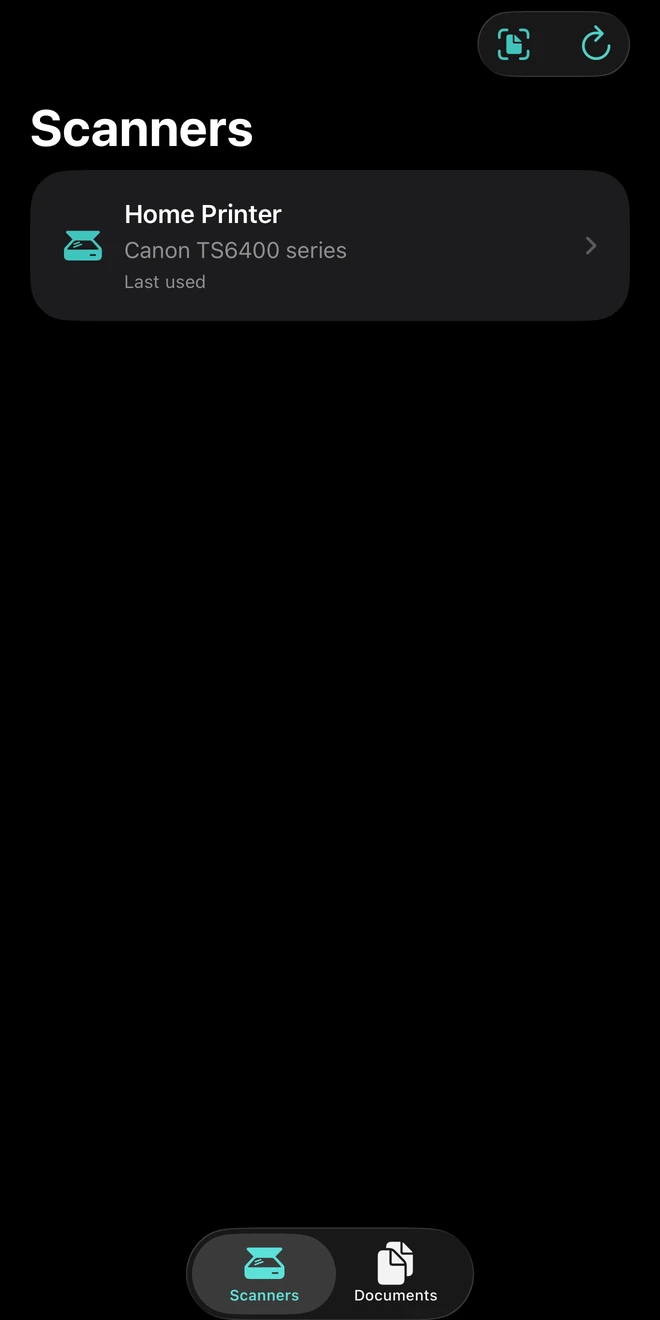
For iPhone & iPad
A Wi‑Fi scanner app for iPhone and iPad. Scan documents from a compatible eSCL / AirScan flatbed scanner or all‑in‑one printer straight to PDF, search and copy the text, and share the file. No account, no cloud, nothing in between.
For iOS 17 or later. AirScanner does not use your camera.
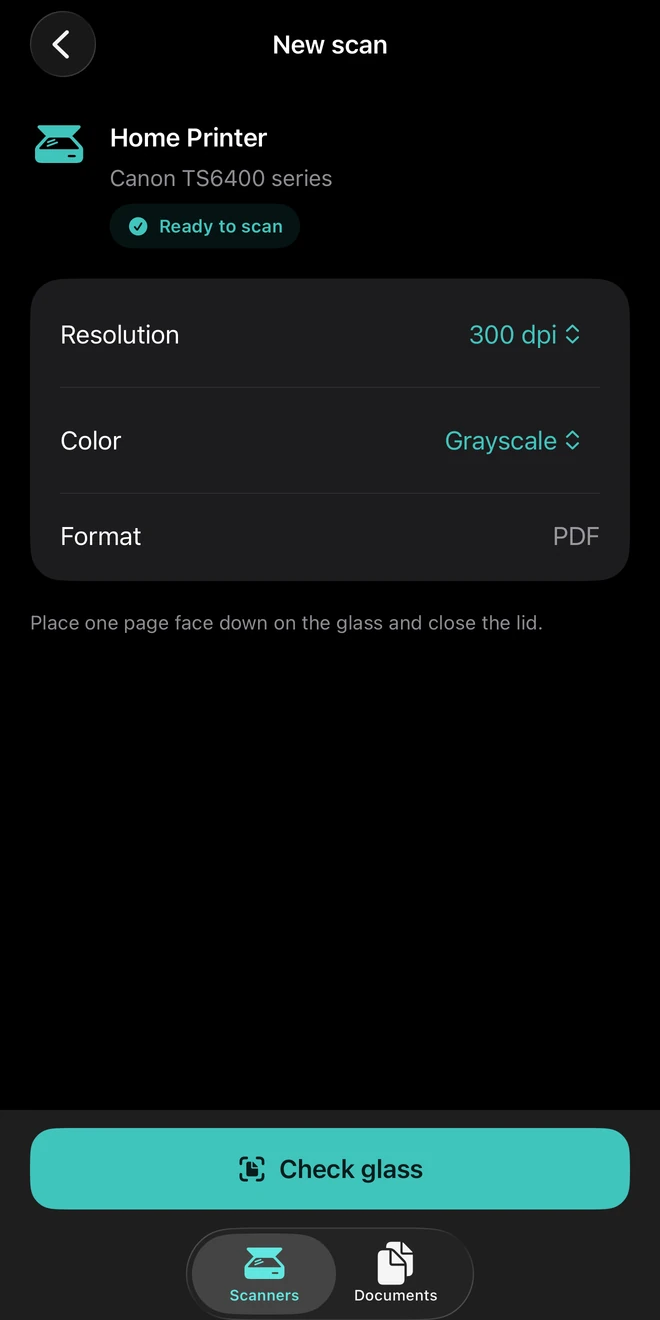
How to scan from a Wi-Fi scanner to your iPhone
Put your phone and scanner on the same Wi-Fi network. Open AirScanner, allow Local Network access, and pick your scanner from the list.
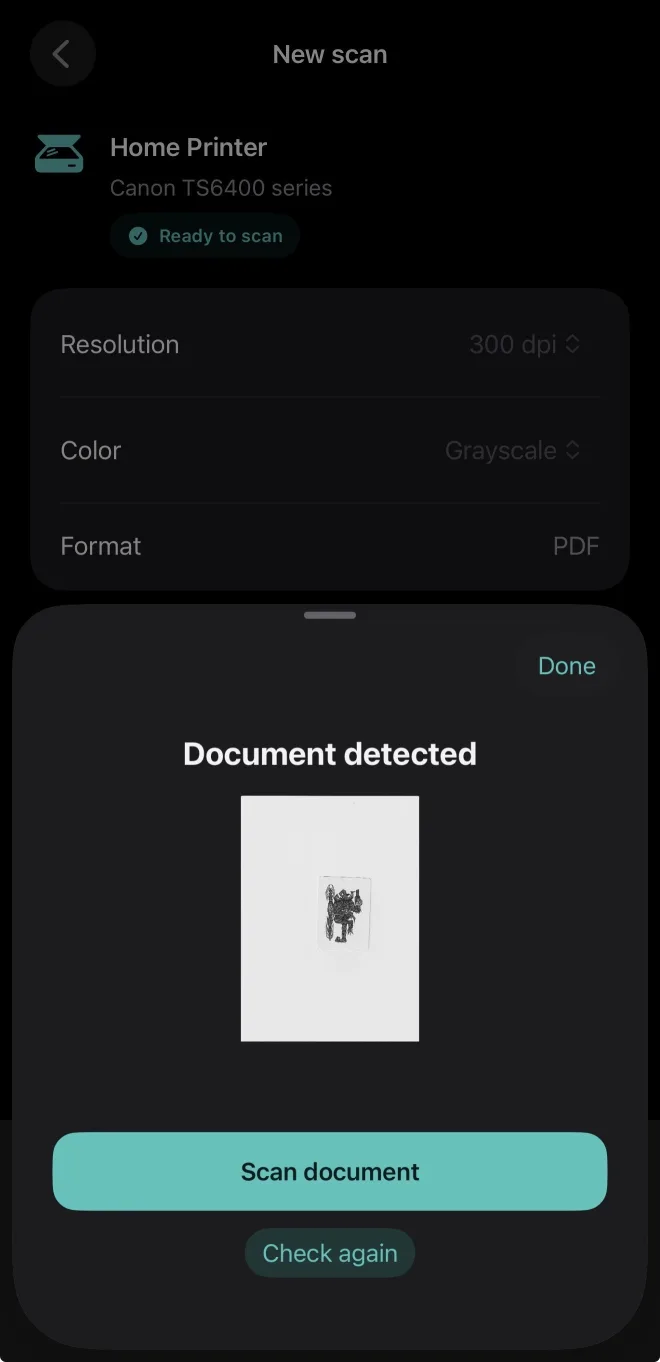
Put the page face down, close the lid, and tap Check glass. AirScanner asks the scanner for a quick preview and tells you when a document is detected, so a crooked page or an empty glass never costs you a full scan.
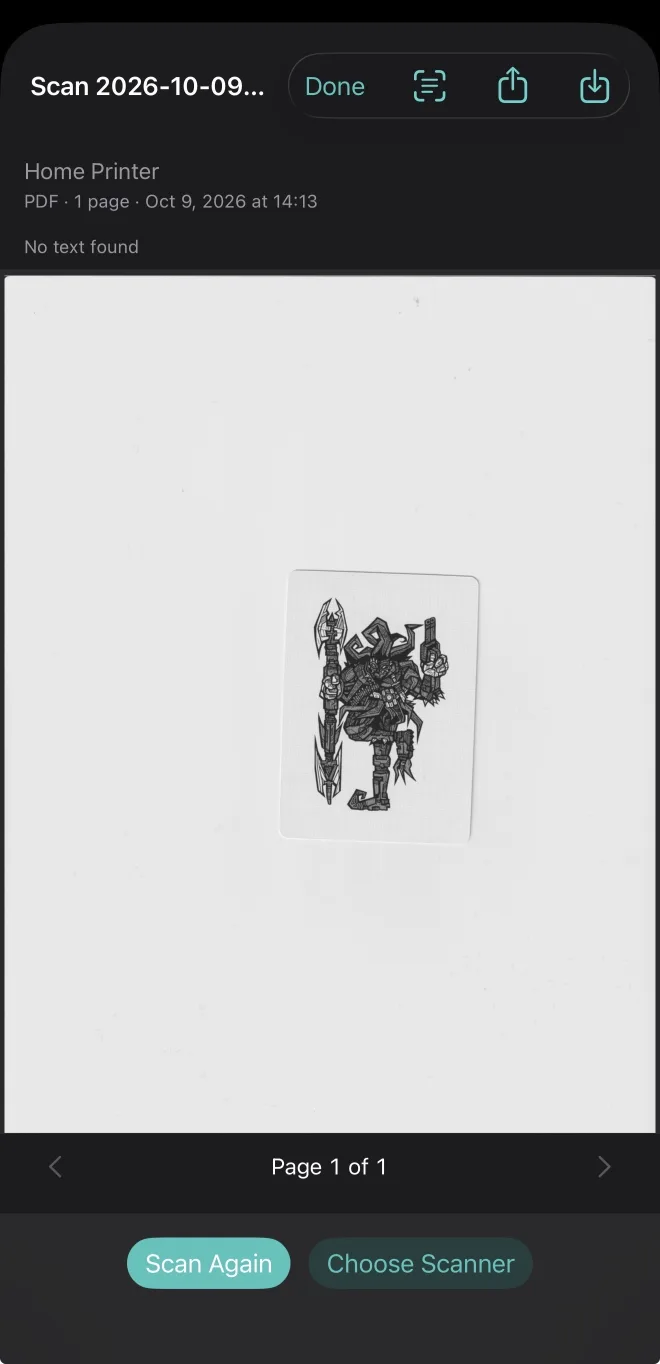
Tap Scan document and the page lands on your device as a PDF, already open: scanner, date, and page count at the top, share and save a tap away, and Scan Again ready for the next page. Keep the app open until it saves.
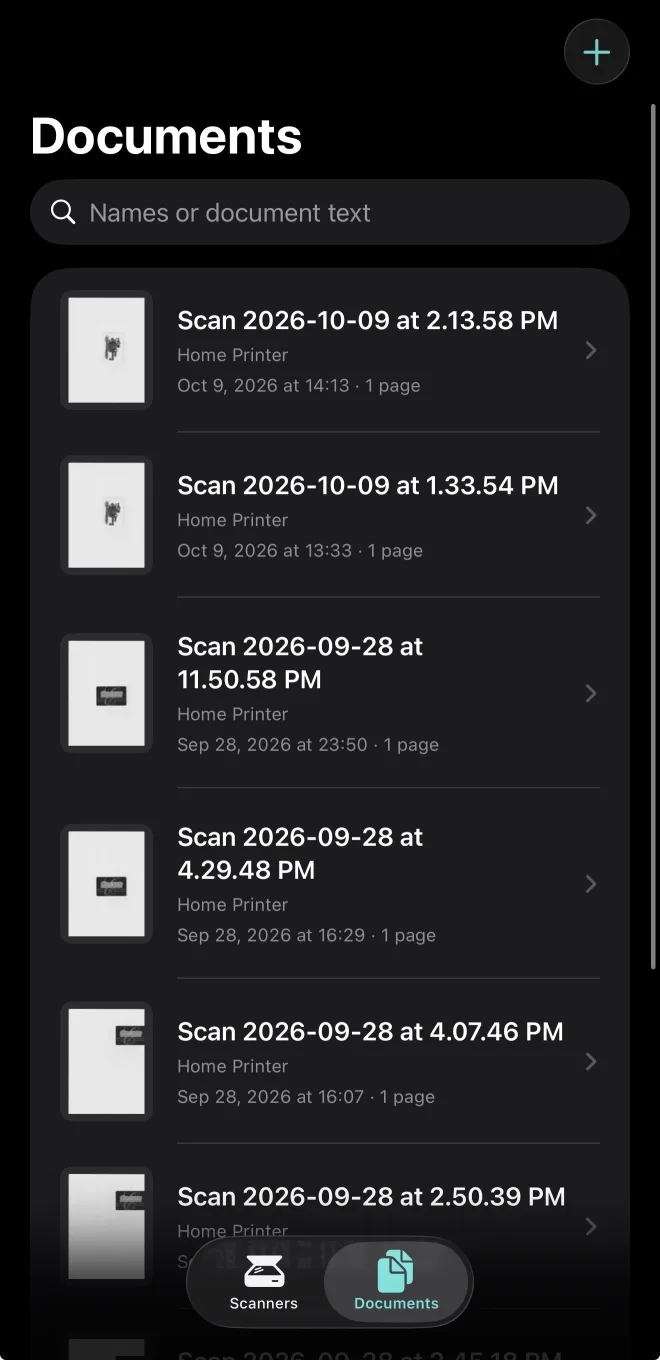
The Documents tab keeps each PDF with its thumbnail, scanner, date, and page count. Search by name or by the text inside, open, rename, copy text from a page, share, or save to Files and Photos. Search works in the app; exported PDFs do not get a text layer.
Scanner compatibility
AirScanner is a network scanner app: it talks directly to your Wi‑Fi scanner over your own network using the eSCL / AirScan protocol that many Canon, Epson, Brother, and HP scanners and all‑in‑one printers support. No account, cloud relay, or developer server is needed.
Start with the basics: your network, Local Network permission, and the glass check.
Setup help & support